Do you know that you can programmatically stop the user changing the date and time of a Pocket PC device?
This is useful if your applications need to take time accurately for some reason from the device.
The following code will disable the user from accessing the date time changing settings using his Windows Mobile powered device.
- private void btnDisableClock_Click(object sender, EventArgs e)
- {
- RegistryKey hklm = Registry.LocalMachine;
- hklm = hklm.OpenSubKey(@"\Software\Microsoft\Clock\", true);
- System.Byte[] offValue = new byte[1];
- offValue[0] = 0x30;
- hklm.SetValue("AppState", offValue);
- lblTitle.Text = "Change Clock Status - Disabled";
- }
If you want to re-enable the setting, to make the user able to change the data and time use the below code.
- private void btnEnableClock_Click(object sender, EventArgs e)
- {
- RegistryKey hklm = Registry.LocalMachine;
- hklm = hklm.OpenSubKey(@"\Software\Microsoft\Clock\", true);
- System.Byte[] offValue = new byte[1];
- offValue[0] = 0x11;
- hklm.SetValue("AppState", offValue);
- lblTitle.Text = "Change Clock Status - Enabled";
- }





 Click Advance Settings from the left pane to bring up the Windows Firewall main screen.
 Click on Inbound Rules and then right click on the same. If you only right click on this you will only see the options Refresh and Help. First click on it and then right click, now click on New Rule ….

 Select the Allow Connection action and press next.
 Select all the available profiles, since I need this rule applicable to all the profiles. Otherwise you can select only the ones you need. Then click Next.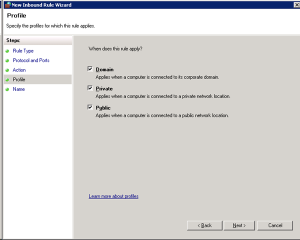
 This will add your rule to the firewall.