There is a cool feature provided by Microsoft for Windows 7 named Windows XP Mode. Simply this is an improved virtual machine which you can use to install applications that are not compatible with Windows 7.
Some advantages of this over Virtual PC are,
- Use of virtually installed applications are faster and easy.
- Virtual applications are performing faster.
- Your Windows 7 start menu can be used to access all the applications that are installed on Windows XP Mode.
- No need to start the virtual machine your self.
- Application is run in normal Windows 7 not in another virtual environment.
- Copy Paste is supported between applications without needing to install any other software addons.
To setup Windows XP Mode you need to download and install Windows XP Mode from Microsoft site. You can use the following link for that.
http://www.microsoft.com/windows/virtual-pc/download.aspx
There you need to download and install,
- Windows XP Mode (WXPM)
- Windows Virtual PC
- WXPM Update
Note - If you have installed Microsoft Virtual PC you need to uninstall that first, other wise WXPM will not work.
After you installed WXPM, it will be in your start menu.
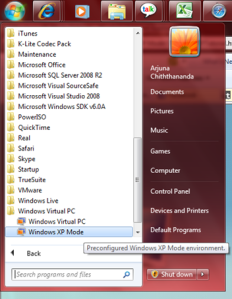 Setting up Windows XP Mode
1. Start WXPM by clicking on the start menu item.
2. Select an appropriate path for the installation of WXPM and give a suitable password, this password will be the password used for the Virtual PC (VPC) user. If you needed to manually connect to the VPC then you need this.

3. Use the next screen to enable the Windows Updates on the VPC.
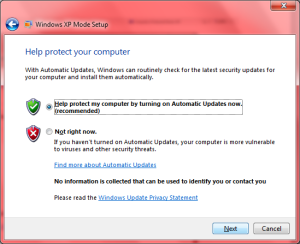
4. Start the setup to initiate the configuration.
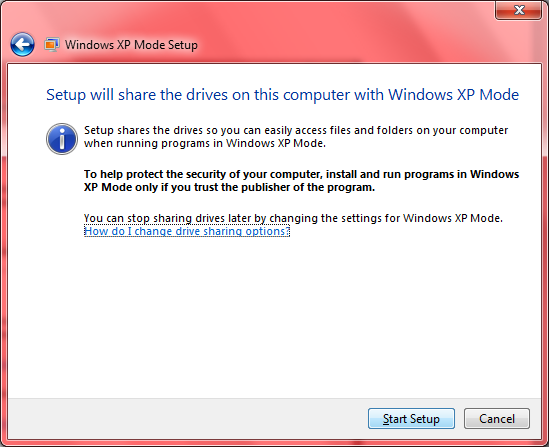

5. After the completion of the configuration WXPM will start a of shown below.

6. All your physical drives will be available on the WXPM as well so you will be able to select and install applications from either of them.
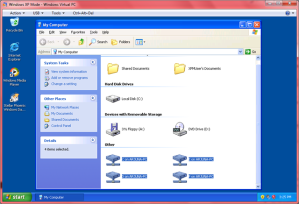
7. For the demonstration I installed “Stellar Phoenix Windows Data Recovery” software since it takes less time to setup.

8. After successfully installing the application on WXPM it will appear on your Windows 7 start menu so you will be able to invoke it directly from Windows 7.
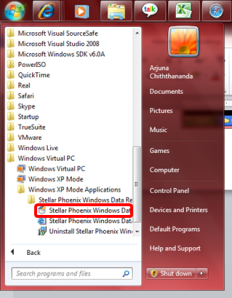

9. As you see there is no difference to the way application is running or shown, and you will even not notice that the application is running in VPC.

Notes – Even though you don’t need, you can even connect to external networks or browse internet using the WXPM, if you do connect the VPC, remember to install a virus guard and enable the firewall for maintaining your computer safety.










 Click Advance Settings from the left pane to bring up the Windows Firewall main screen.
 Click on Inbound Rules and then right click on the same. If you only right click on this you will only see the options Refresh and Help. First click on it and then right click, now click on New Rule ….

 Select the Allow Connection action and press next.
 Select all the available profiles, since I need this rule applicable to all the profiles. Otherwise you can select only the ones you need. Then click Next.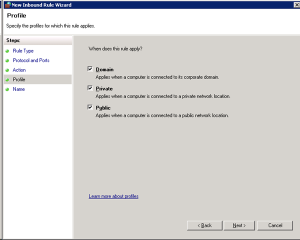
 This will add your rule to the firewall.




 d. Select the site or the farm to backup the entire SharePoint farm.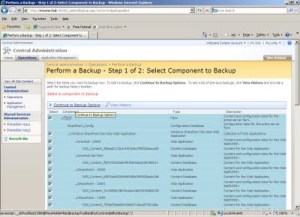


 Recently I had to install and configure WSUS (Windows Server Update Services) on our company.

