Here is a small code that I wrote to find the image format of an image.
This code will check for the raw image format of the image you select and will display in a pop up window.
Hope this helps.
- using System.Drawing.Imaging;
- private void button1_Click(object sender, EventArgs e)
- {
- openFileDialog1.ShowDialog();
- Image img = Image.FromFile(openFileDialog1.FileName);
- ImageFormat imgfmt = img.RawFormat;
- if (imgfmt.Equals(ImageFormat.Bmp))
- MessageBox.Show(ImageFormat.Bmp.ToString());
- else if (imgfmt.Equals(ImageFormat.Jpeg))
- MessageBox.Show(ImageFormat.Jpeg.ToString());
- else if (imgfmt.Equals(ImageFormat.Tiff))
- MessageBox.Show(ImageFormat.Tiff.ToString());
- else if (imgfmt.Equals(ImageFormat.Wmf))
- MessageBox.Show(ImageFormat.Wmf.ToString());
- else if (imgfmt.Equals(ImageFormat.Icon))
- MessageBox.Show(ImageFormat.Icon.ToString());
- else if (imgfmt.Equals(ImageFormat.Png))
- MessageBox.Show(ImageFormat.Png.ToString());
- else if (imgfmt.Equals(ImageFormat.Gif))
- MessageBox.Show(ImageFormat.Gif.ToString());
- }



 Click Advance Settings from the left pane to bring up the Windows Firewall main screen.
 Click on Inbound Rules and then right click on the same. If you only right click on this you will only see the options Refresh and Help. First click on it and then right click, now click on New Rule ….

 Select the Allow Connection action and press next.
 Select all the available profiles, since I need this rule applicable to all the profiles. Otherwise you can select only the ones you need. Then click Next.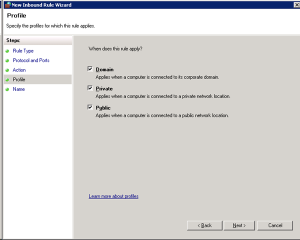
 This will add your rule to the firewall.